
Fortnite: Gyro Aiming And Flick Stick Controls Have Been Added To All Modes In The Game

If you play Fortnite on Switch, you’re probably already aware of how much the console’s gyro aiming options can up your game. Gyro aim is now available on the PlayStation 5 and PlayStation 4 as well as Android with the v19.20 updates. And that’s not all: gyro aiming across the board has been greatly improved thanks to a collaboration with input specialist and Flick Stick creator Julian “Jibb” Smart.
Flick Stick, an input for analog sticks that allows quick turnarounds is what the Flick Stick does. Flick Stick can be used to quickly flip your analog stick right down and perform a 180-degree turn. These quick turns can significantly improve your survival rate in games like Fortnite. Add in the extra precision that gyro aiming provides and you’ve got some Victory Royales in your future.

“Enable or disable gyro controls in the ‘Touch and Motion’ tab of the settings,” an Epic Games blog post reads. “Do this by toggling ‘Gyro Aiming’ to either on or off. When on, you’ll be able to control the camera by turning the controller. This offers more precision than standard stick aiming, but it doesn’t have to replace it entirely. Usually, players will still use the right stick for most camera control while using gyro aiming for finer adjustments that are difficult to do with a thumbstick.”
When you dive into the Touch and Motion tab, you’ll notice all sorts of new options and that speaks to Fortnite’s new and improved gyro aiming and Flick Stick controls, courtesy of Smart – for an in-depth read about how Smart, a Fortnite community member, shot his shot and pitched Epic Games all-around better gyro aiming controls, be sure to read Game Informer’sDeveloper information.
Active Mode: Choose When Gyro’s Active
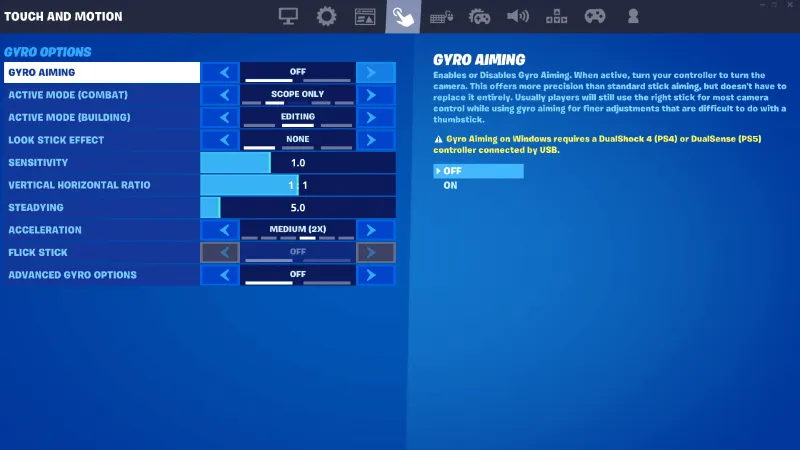
Two Active Mode options are available: Active Mode (Combat). Building in Active Mode. Active Mode (Combat) allows you to choose Scope OnlyGyro activates only when you are aiming at scoped guns. Scope and Aim, which uses gyro when aiming any weapon regardless of scope, Scope, Aiming, HarvestingGyro is used to aim any weapon and swing any harvesting tools. AlwaysIt keeps the gyro on all times.
You can choose Active Mode (Building) NoneThe gyro is turned off by the following: EditingThe gyro switch on the X-axis when you edit but not when you build, is called AlwaysIt keeps the gyro on all times.
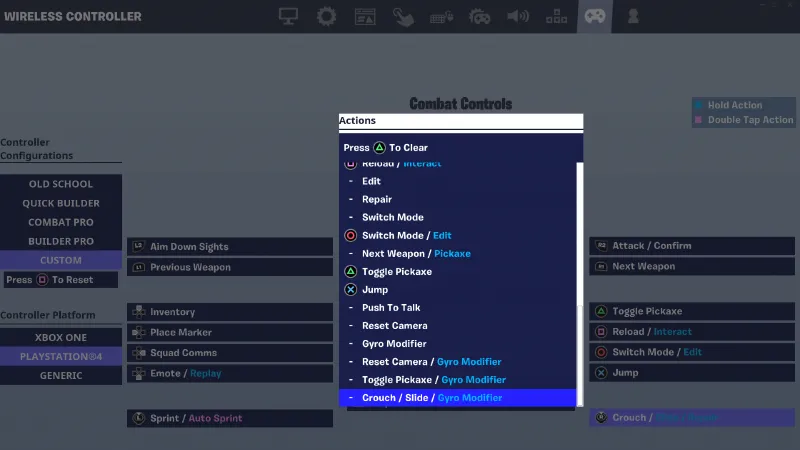
Epic Games says if you set either Active Mode to an “Always” setting, it’s recommended to have another way to disable gyro so that you can easily reset your controller and camera position. You can do this by setting the “Look Stick Effect” option next to “Disables,” or, in the controller customization settings by customizing your controls to include a “Gyro Modifier” button.
Why Gyro has the Lock Stick Effect
This allows you to choose the effect of an analog stick on your gyro-aiming. If you set “Look Stick Effect” to “None,” the right stick has no effect on gyro as the name implies. If you set it to “Disables,” gyro deactivates once you use the stick. Setting this effect to “Enables,” however, will make it so that gyro remains on while you’re using the right stick. Gyro will not be turned off when the appropriate stick is not being used.
Selections and Sensitivity Sliders
As expected, you’ll be able to adjust gyro aiming sensitivity. If the default value is 1.0, then the controller will control the camera’s movement. Sensitivity is automatically reduced as you zoom in with long-range weapons, but you can change this in the “Advanced Gyro Options.”
“You can also adjust the ratio of vertical to horizontal sensitivity,” Epic Games writes in its blog post. “Additionally, you’re able to increase sensitivity for when you’re turning the controller quickly. This is controlled by the ‘Acceleration’ option. Keep Acceleration disabled or set it to 1.5X, 2X, 4X, Legacy, or your own custom sensitivity (Legacy refers to the acceleration of the motion controls that were on Nintendo Switch and Android prior to v19.20).”
Elsewhere in the Touch and Motion tab, you’ll find that you can adjust settings to control aim steadiness when keeping a controller nearly still. You can also turn Use the Flick Stick on or off here and for the most serious of gyro users, turn on “Advanced Gyro Options” to unlock many more settings such as the ability to change your axes of rotation or even having a button that inverts your gyro aim on the fly.
Flick Stick
Smart and Epic Games also have Flick Stick controls, which are inputs that were actually developed by Smart.

Julian Smart (Jibb)
“Found in the ‘Touch and Motion’ tab as well, turn on Flick Stick so that when you point the right stick in a certain direction, the camera will quickly flick to face that direction,” Epic Games writes. “Since this means you can no longer aim up or down with the right stick, this requires gyro aiming to be enabled. Flick Stick is generally recommended for experienced gyro players, but some new gyro players get a hold of it quickly.”
If you’re interested in playing with gyro aiming on, here are some tips from Epic Games:
- For new gyro players: “We recommend enabling gyro and not adjusting any other gyro settings (except sensitivities if you feel the need to change them). Flick Stick is recommended to be kept off. Gyro can only be active when you aim with gyro disabled and the other settings set to default. This way, it simply adds onto traditional stick aiming, giving you a chance to get used to what gyro’s best at: fine aiming adjustments.”
- For experienced gyro players: “We recommend setting your aim mode to Always and binding another input to disable gyro. This can be done without sacrificing controller real estate by combining it with another input. For example, you can set Crouch/Slide and Gyro Modified (which disables gyro) to the same button, then active either one depending on how long you press the button.”
- Flick Stick is available for players who wish to try it.: “We recommend setting your Look Stick Effect to Enables. This way, even in an aim mode in which gyro is not active all the time, you can still make vertical adjustments when you need to by engaging the flick stick.”
Epic Games FAQ has more information on gyro aim and Flick Stick control. Make sure you read Game Informer’sExclusive interview with Smart the developer of these controls, to find out why gyro targeting is such a great option for accessibility and Fortnite pro players.
Do you want to play Fortnite with Flick Stick and gyro aim? Comment below to let us know your thoughts!
#Fortnite #Gyro #Aiming #Flick #Stick #Controls #Added #Modes #Game